
Content
Packaging is a fundamental part of any brand’s identity. A well-designed box not only protects the product, but also conveys professionalism, reinforces brand image, and improves the customer experience.
At Selfpackaging, we want to make it easy for you. That’s why we have a special section on our website where you can create customizable packaging thanks to our online editor, an intuitive tool that allows you to visualize the result in real time.
In addition, you can use our configurator from both desktop and mobile, so you can design 3D boxes from anywhere and at any time, in a convenient and fast way.
In this tutorial, we show you step by step how to design 3D boxes directly from our website (both desktop and mobile versions), adding your logo, text, images, or even any pattern you want.
You will also find a tutorial to learn how to customize printable sleeves for shipping boxes and stickers.
ONLINE BOX CUSTOMIZATION
Access the customizable packaging section
To get started, go to the homepage of our website.
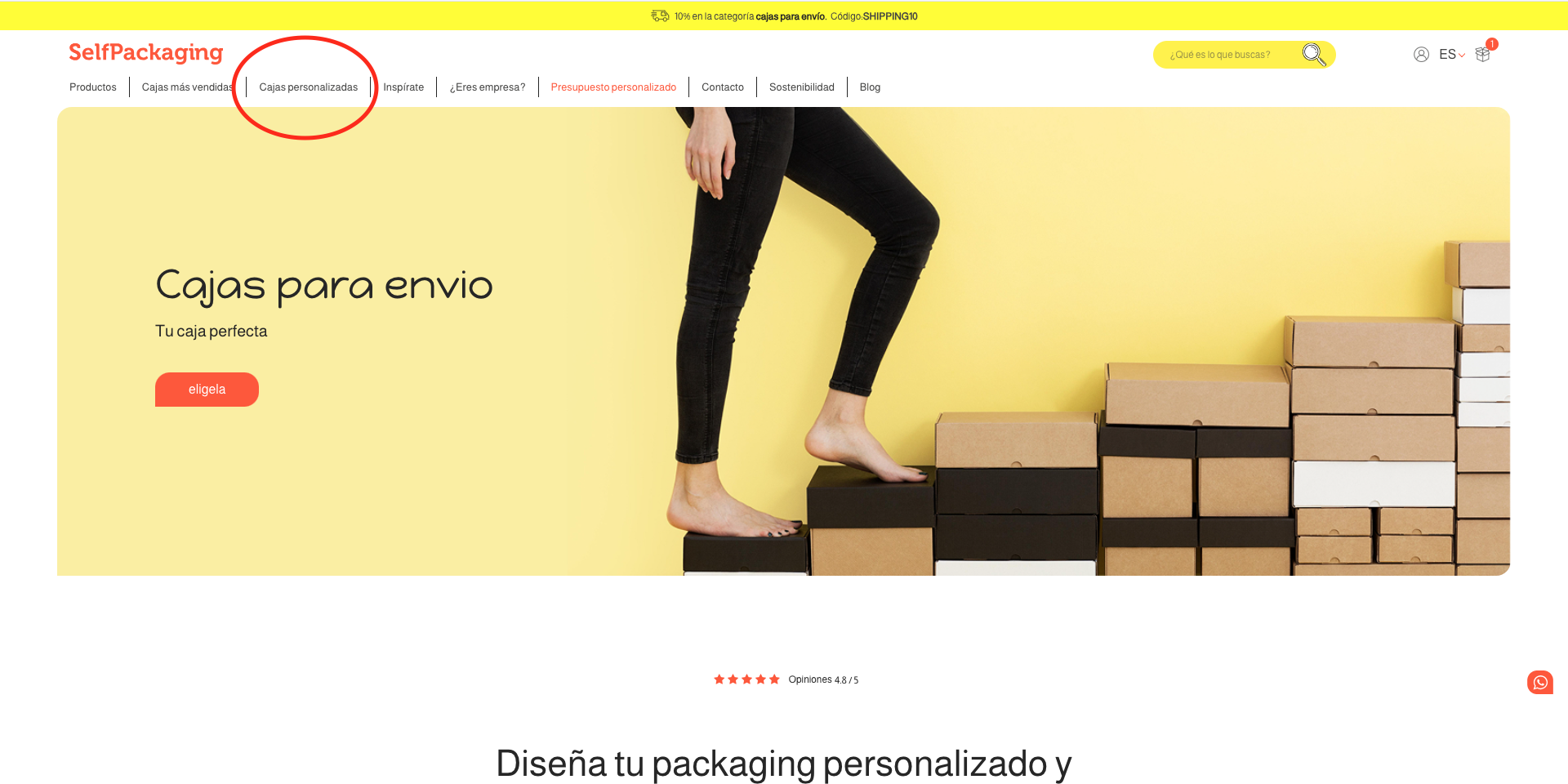
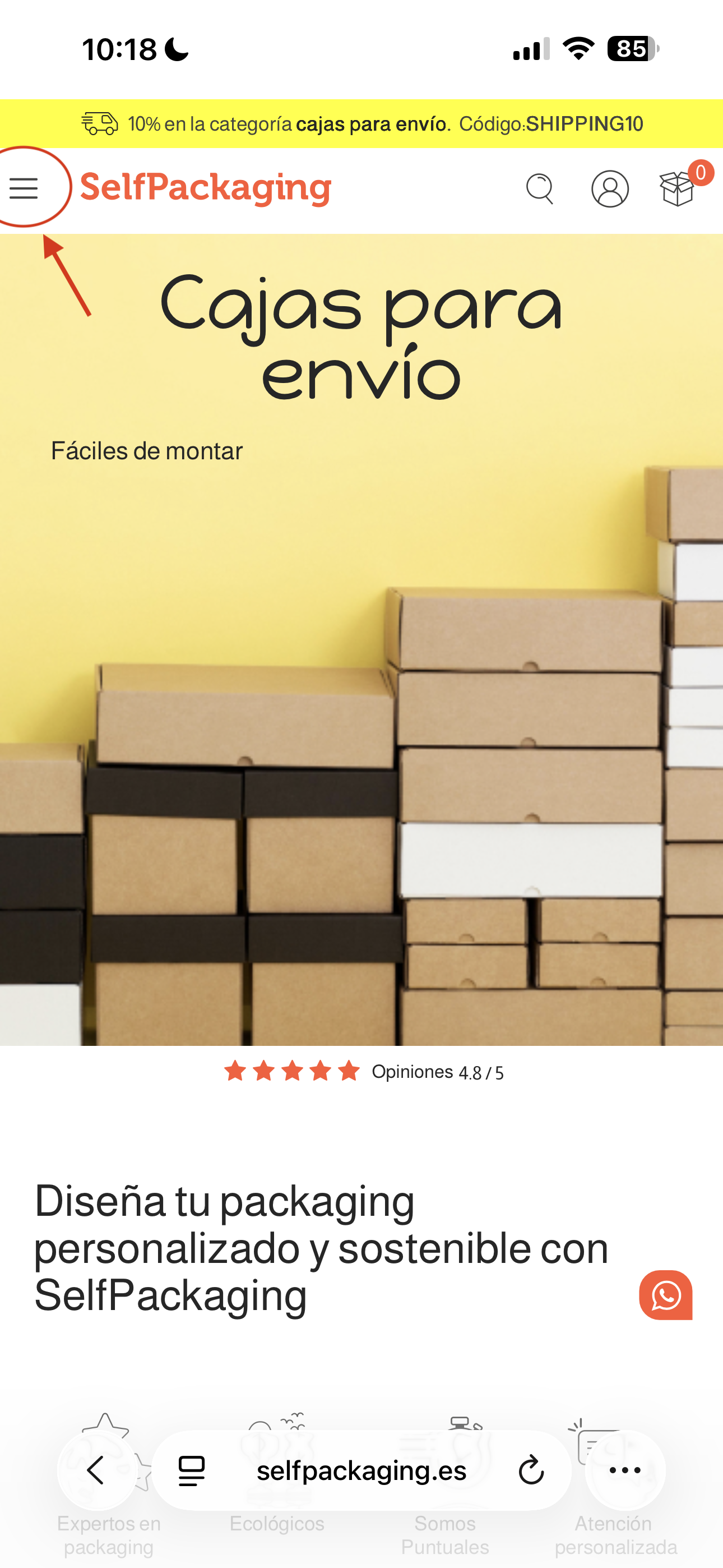
In the top menu, click on the third option, “Print boxes”:
Desktop version:
Mobile version:
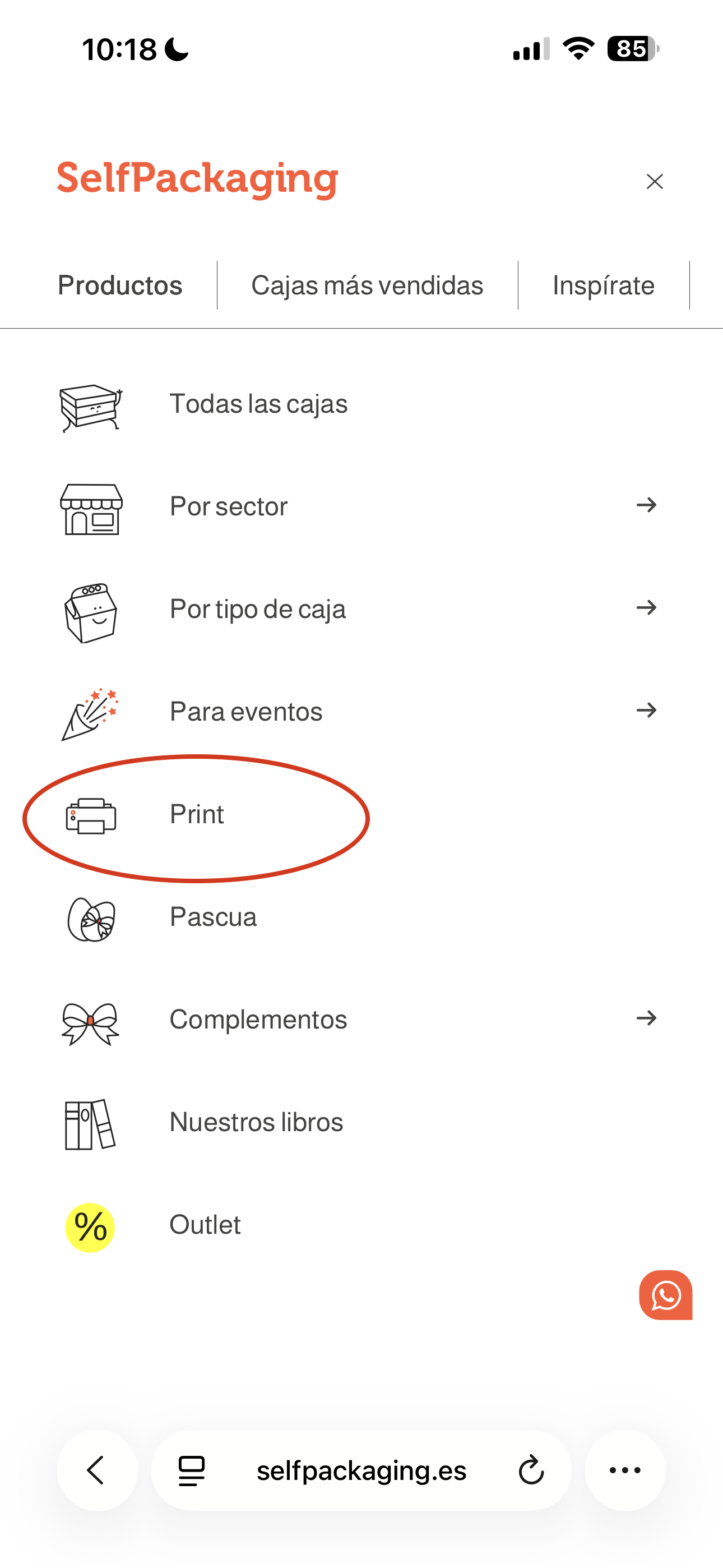
In this section, you will find different box models that allow for a more advanced level of customization. These are customizable packaging options that allow direct printing on the box, ideal for incorporating your brand identity.
Choose the box model
Within the PRINT BOXES section, you will see different models available to customize:
Desktop version:
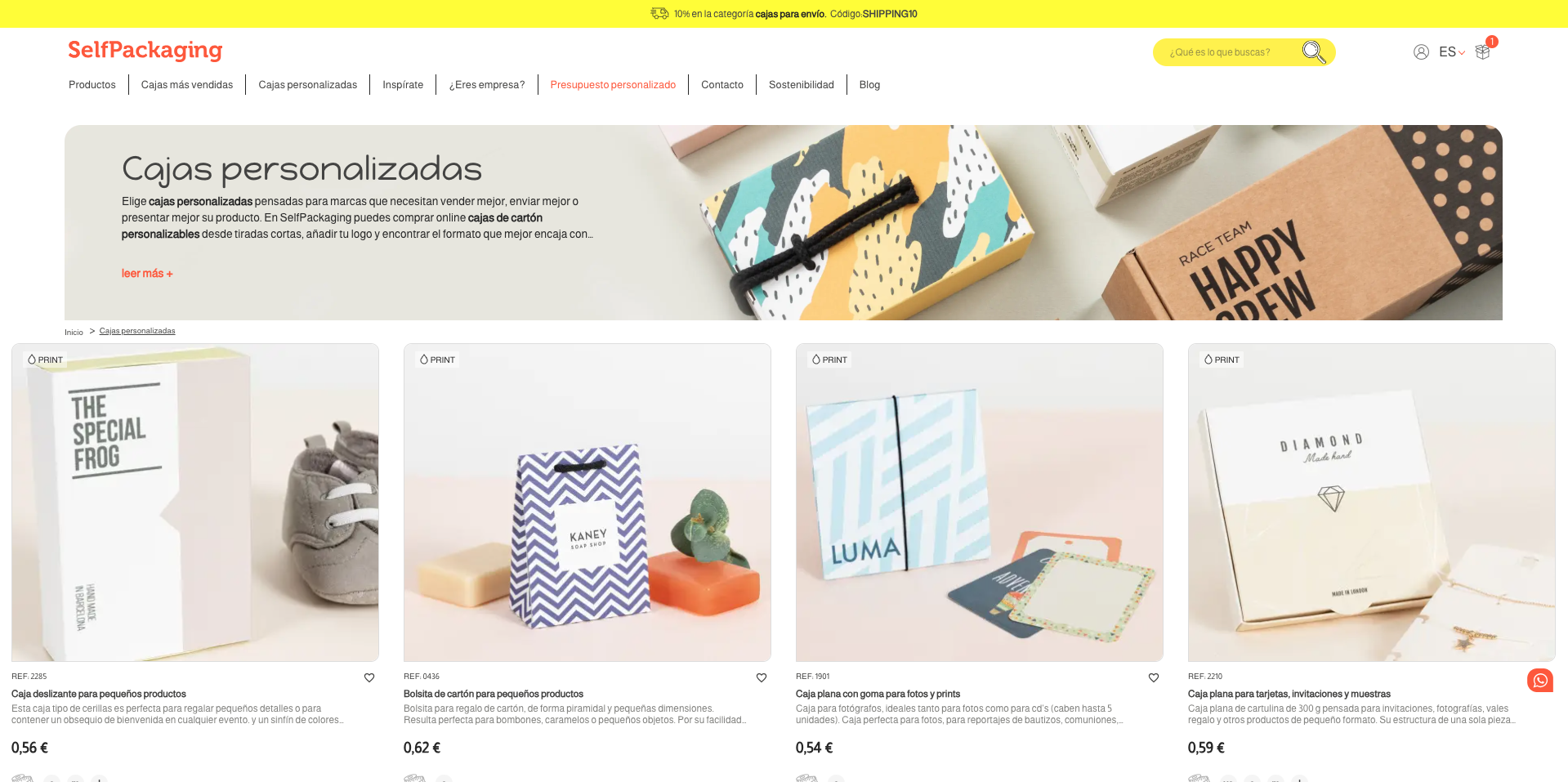
Mobile version:
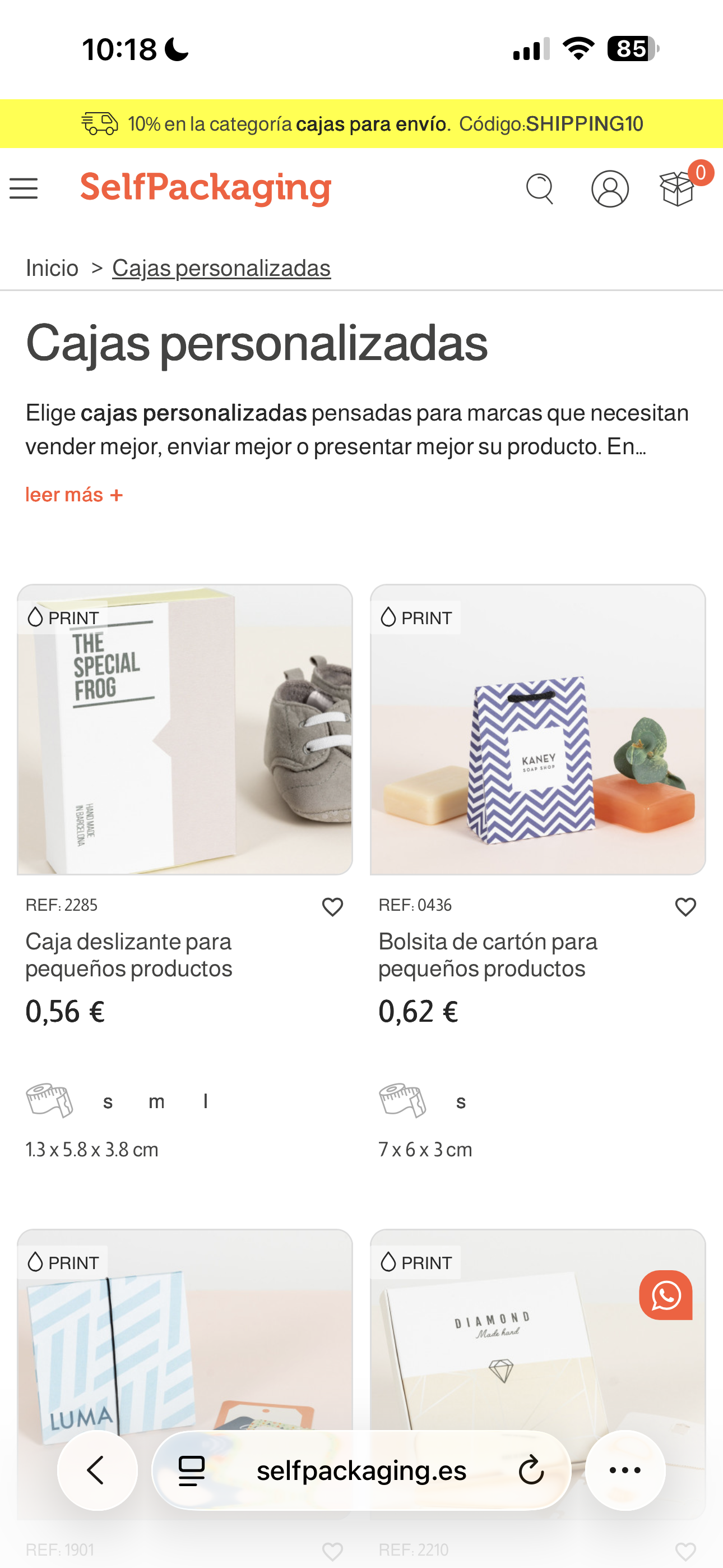
Select the one that best suits your product and click on it.
Configure the characteristics of your box
This will take you to the product page, where you can start configuring your box before moving on to the design process.
Desktop version:
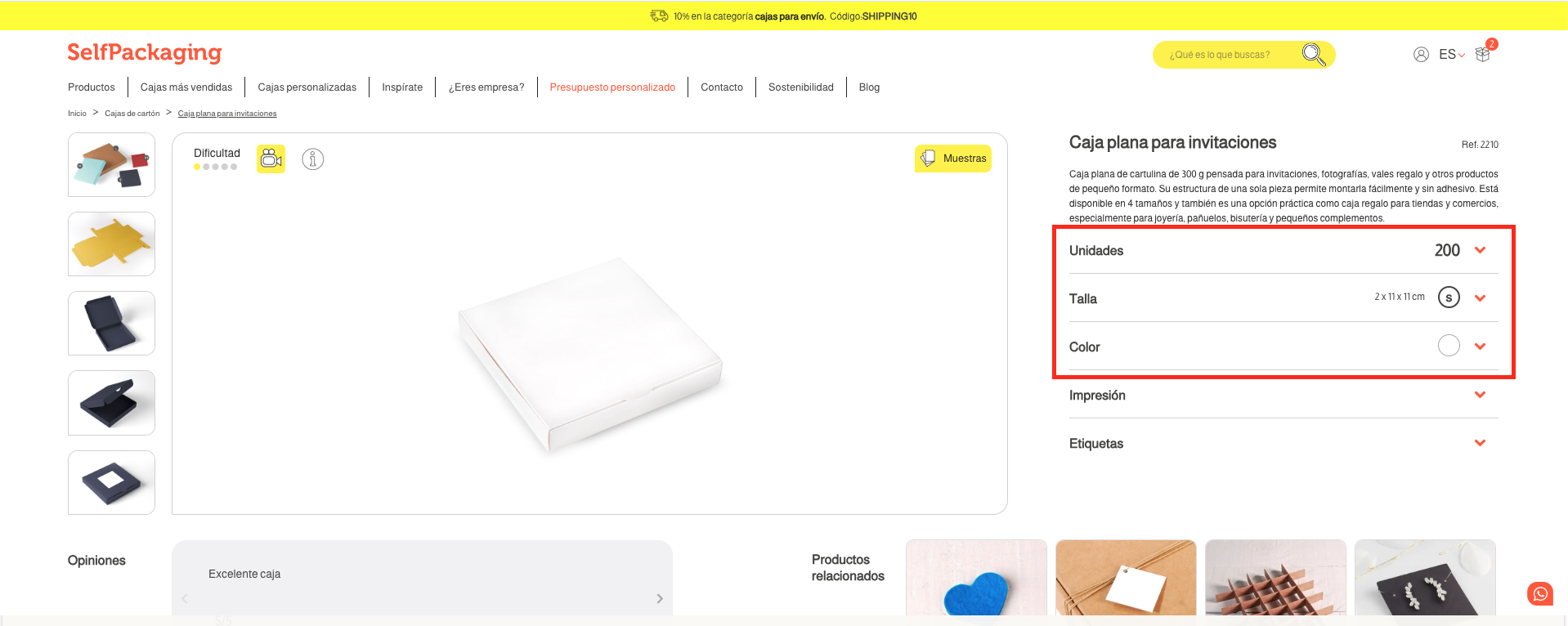
Mobile version:
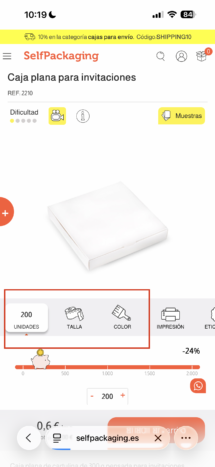
Before you start designing your packaging, you will need to select some basic parameters:
- “Units”: Here you must select the number of units you need.
- “Size”: Some boxes have different sizes; choose the one that best fits your needs.
- “Color”: Some models allow you to change the color; choose the one you like the most.
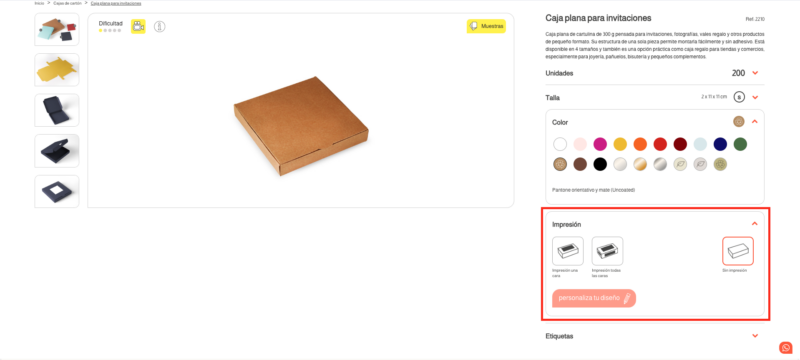
Once you have selected these options, you will find the “Printing” section. Here you can choose between three options:
- “No printing”: If you select this option, no custom design will be applied to the box.
- “Single-side printing”: With this option, you will only be able to customize one side of the box.
- “All-sides printing”: With this option, you will be able to customize all sides of the box.
Desktop version:
Mobile version:
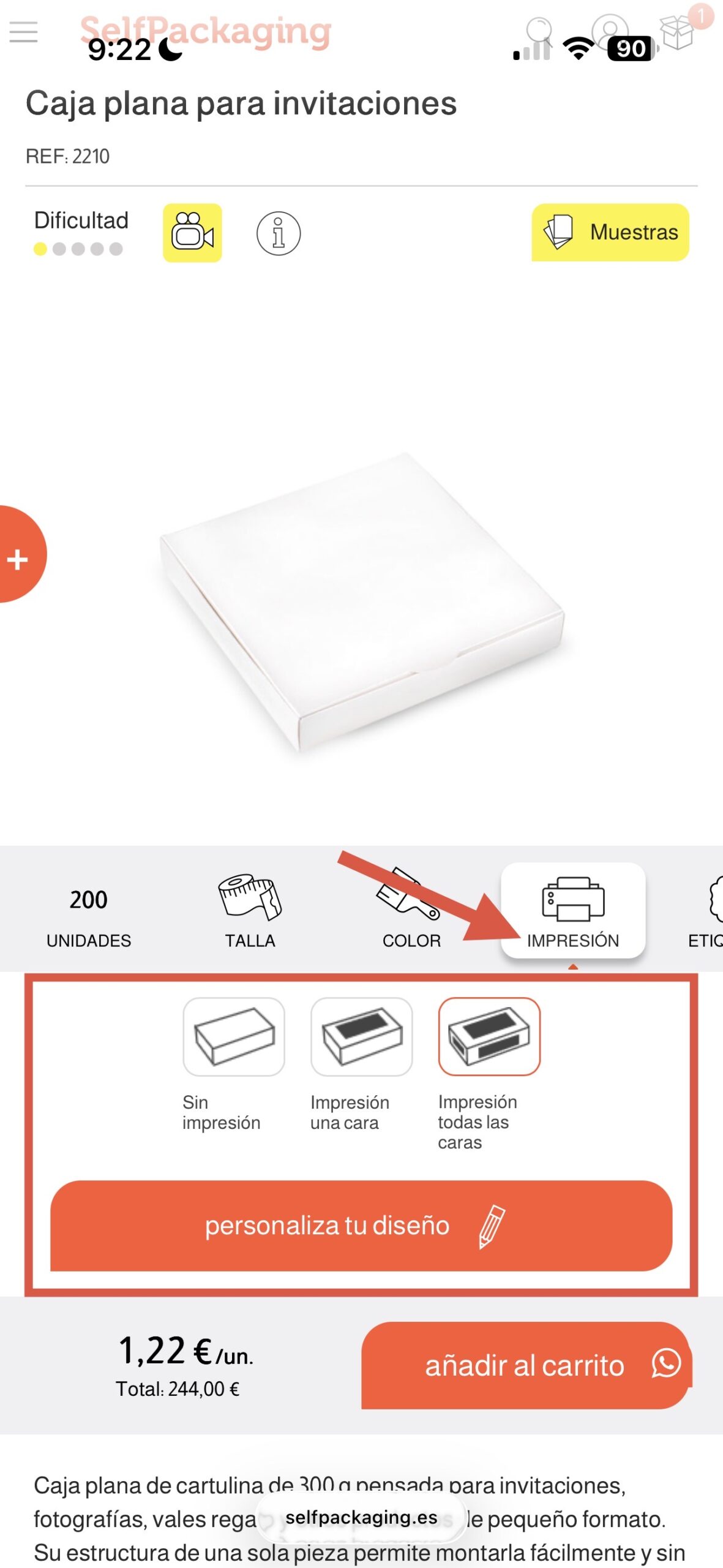
After that, click on “Customize your design” to access the next step.
Choose how you want to design your box
Before entering the designer, if you select the “all sides” option, a window will appear with two different options.
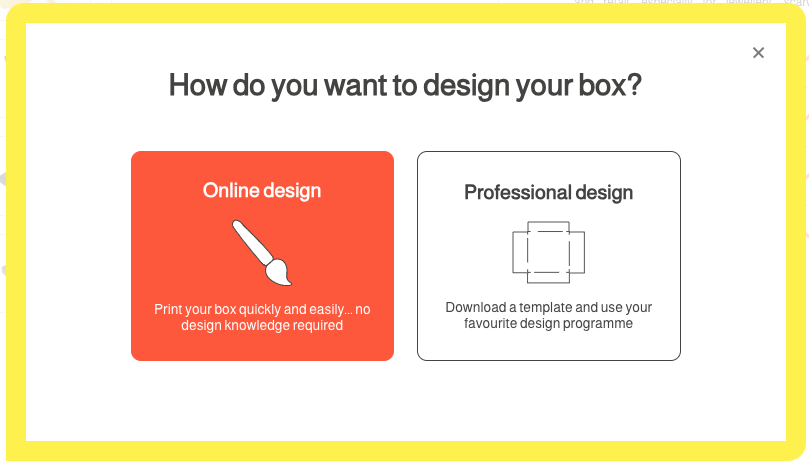
Design online
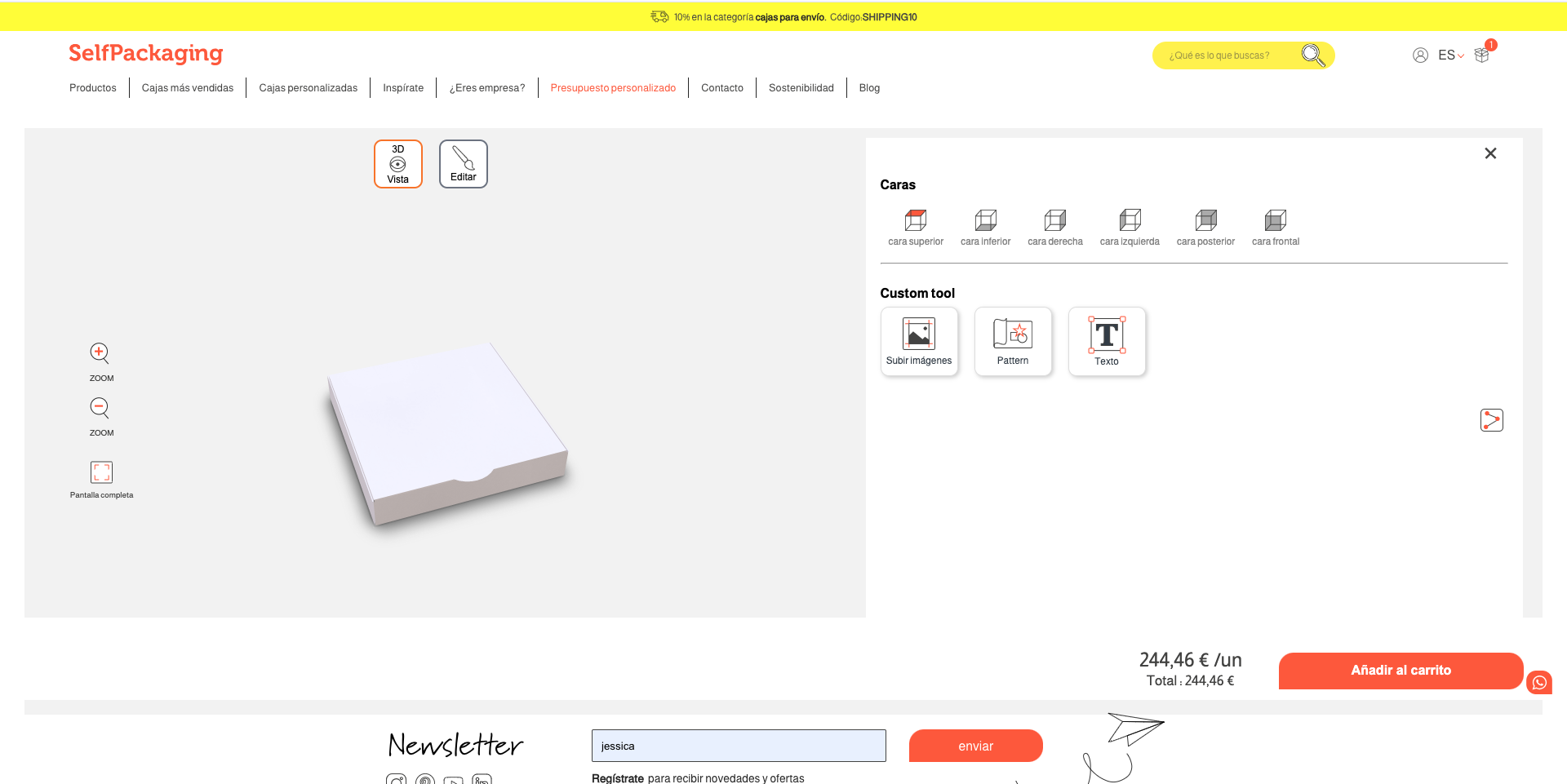
This option allows you to design 3D boxes directly from the website using our online editor.
It is a tool designed so that anyone can create their own packaging easily, without needing design knowledge.
In addition, you will be able to see how the design looks on a 3D model of the box in real time.
Once inside the configurator, you will access our online designer, where you can start creating your customized packaging.
Now all that’s left is to let your creativity flow.
TIP: At the top, you’ll find two buttons: ‘3D View’ and ‘Edit’: Choose between these buttons to view the box in 3D or 2D (the selected face).
Desktop version:
Mobile version:
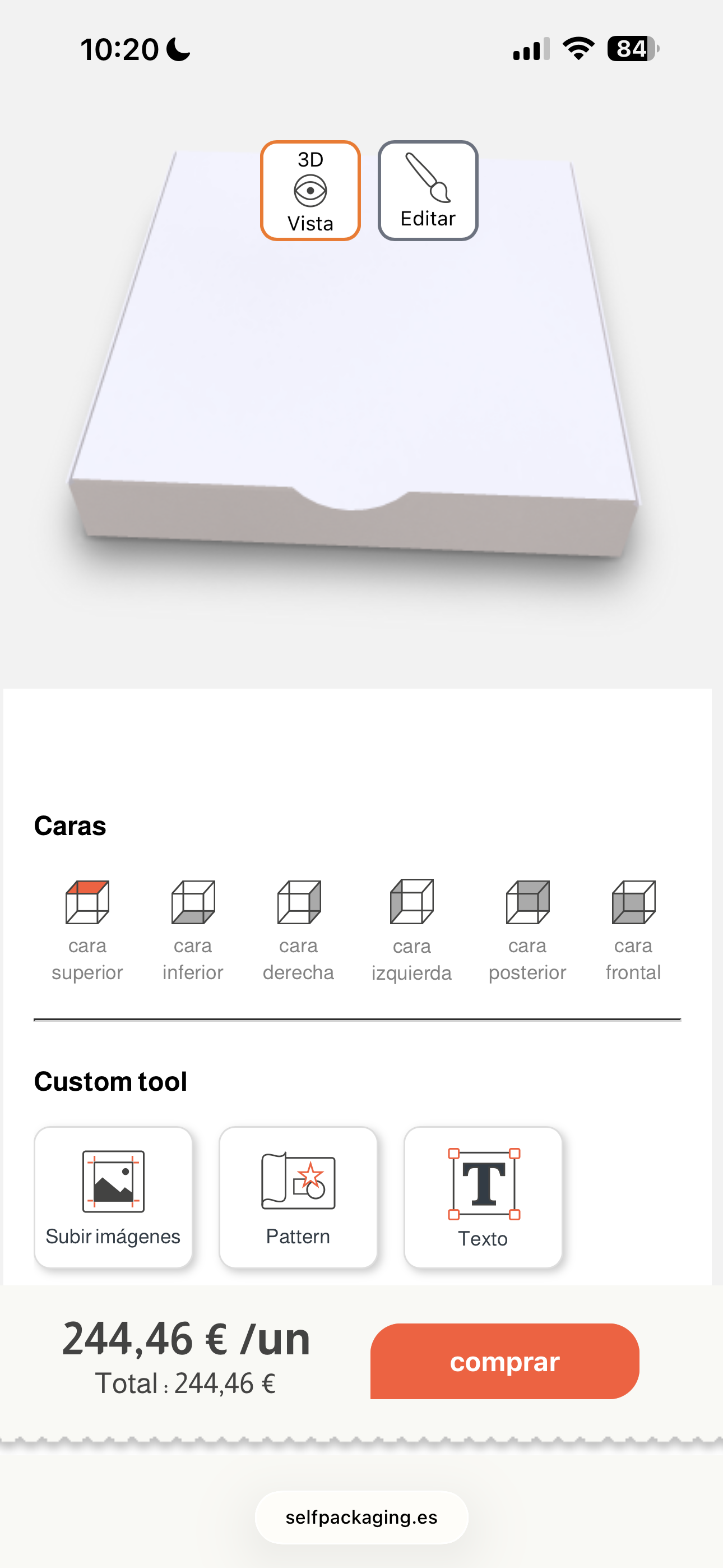
You will be able to design each side of the box, adding different elements such as:
- images/logo: Add an image by importing it from your computer files.
- patterns: Here you will find various patterns available to add to your box.
- text: In this option, you can add text that you can customize.
Images and patterns can be easily enlarged or reduced to adapt them to the size you prefer.
In the case of text, in addition to modifying the size, you can also change the typography and colors, allowing you to adapt the design to your brand’s visual style.
While working on the design, the configurator will display a 3D view of the box, so you can check at all times how the final result of your packaging will look.
Professional design
This option is intended for designers or users who prefer to work with external programs.
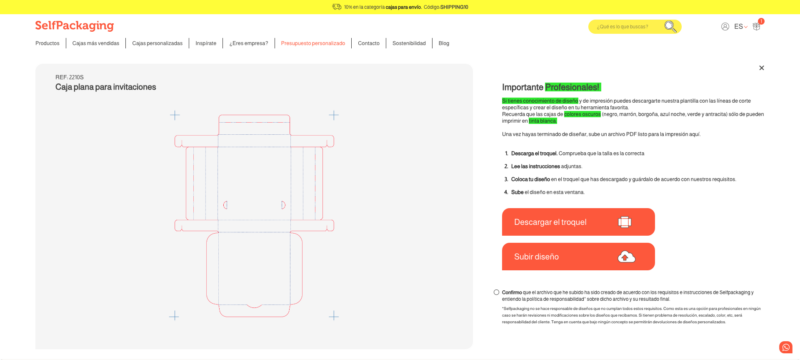
In this case, you will be able to download the box template, create your design with tools such as Illustrator or Photoshop, and then upload the final file with the design ready for printing.
Desktop version:
Mobile version:
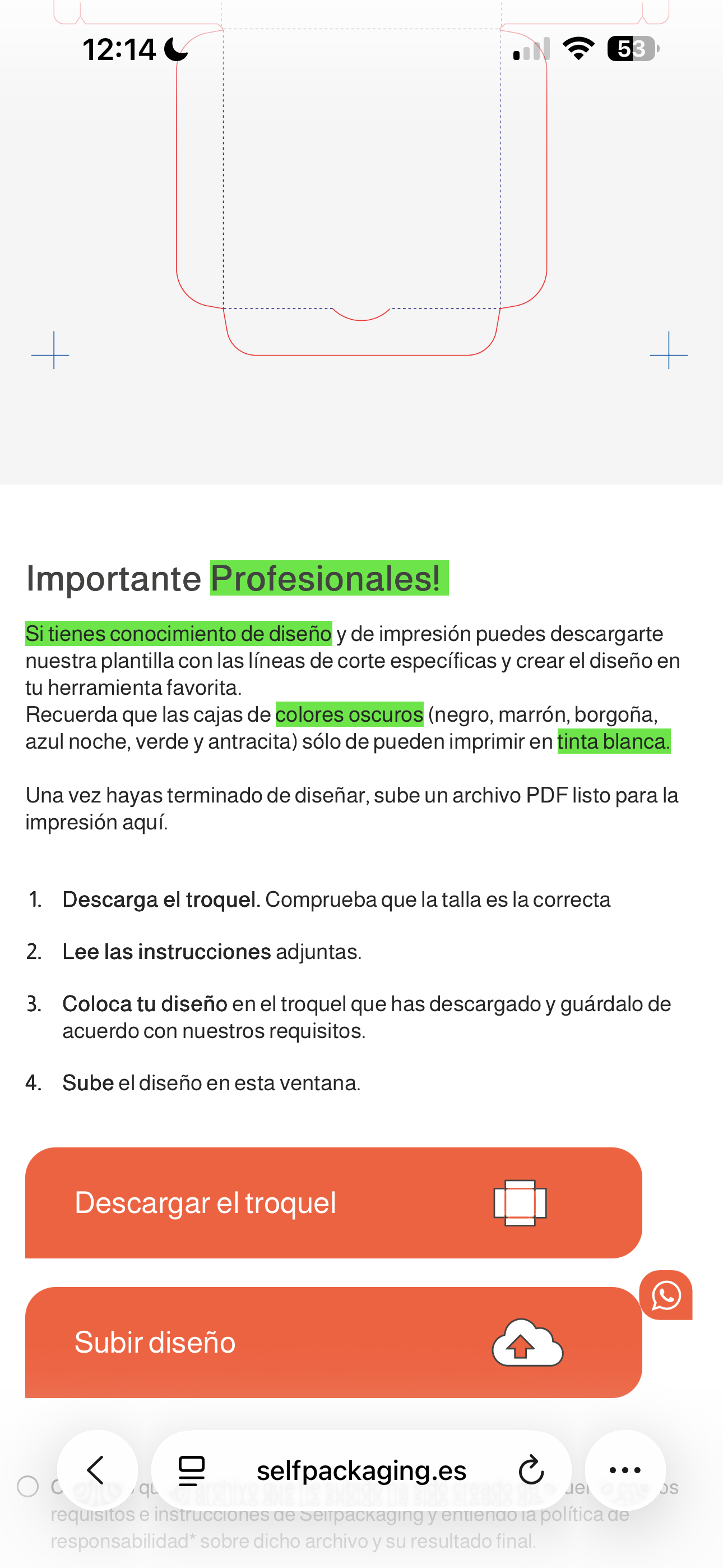
If you have knowledge of design and printing, you can download our template with the specific cutting lines and create the design in your favorite tool.
Remember that dark-colored boxes (black, brown, burgundy, navy blue, green, and anthracite) can only be printed in white ink.
Once you have finished designing, upload a print-ready PDF file here.
- Download the dieline. Make sure the size is correct
- Read the attached instructions
- Place your design on the downloaded dieline and save it according to our requirements
- Upload the design in this window
Add your box to the cart
When you have finished designing your 3D box and have checked that everything is correct, all that’s left is to add the design to your order.
To do this, click on the “Add to cart” button, located in the lower right corner of the configurator.
Your customized box will automatically be added to the cart and will be ready to process your order.
STICKER CUSTOMIZATION
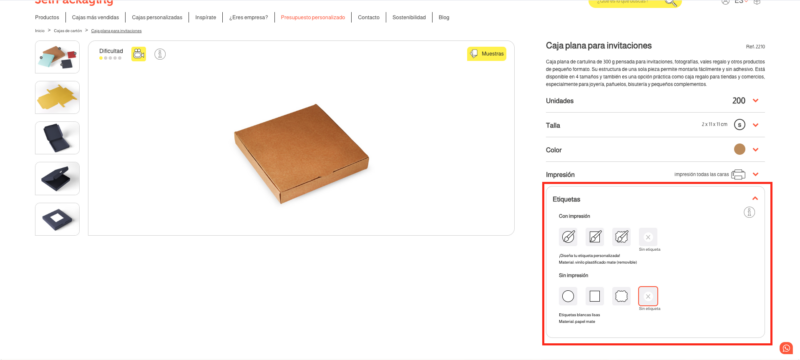
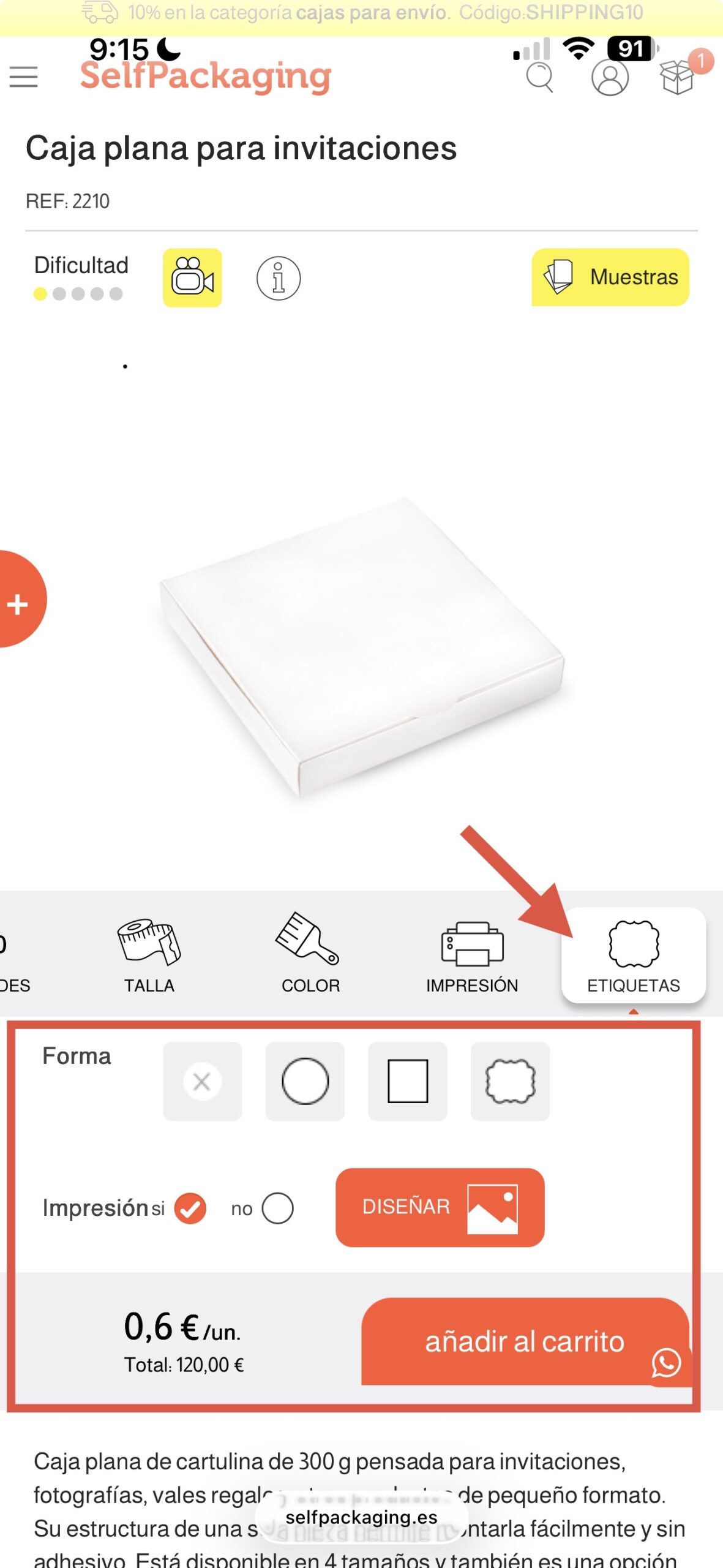
Another easy way to customize your packaging is through our personalized stickers.
Desktop version:
Mobile version:
In this section, you can choose between:
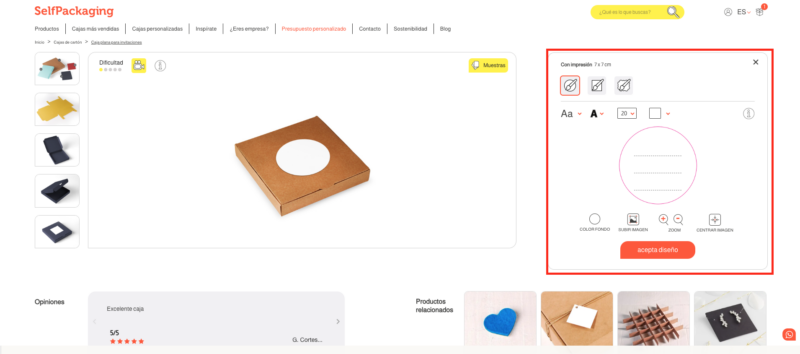
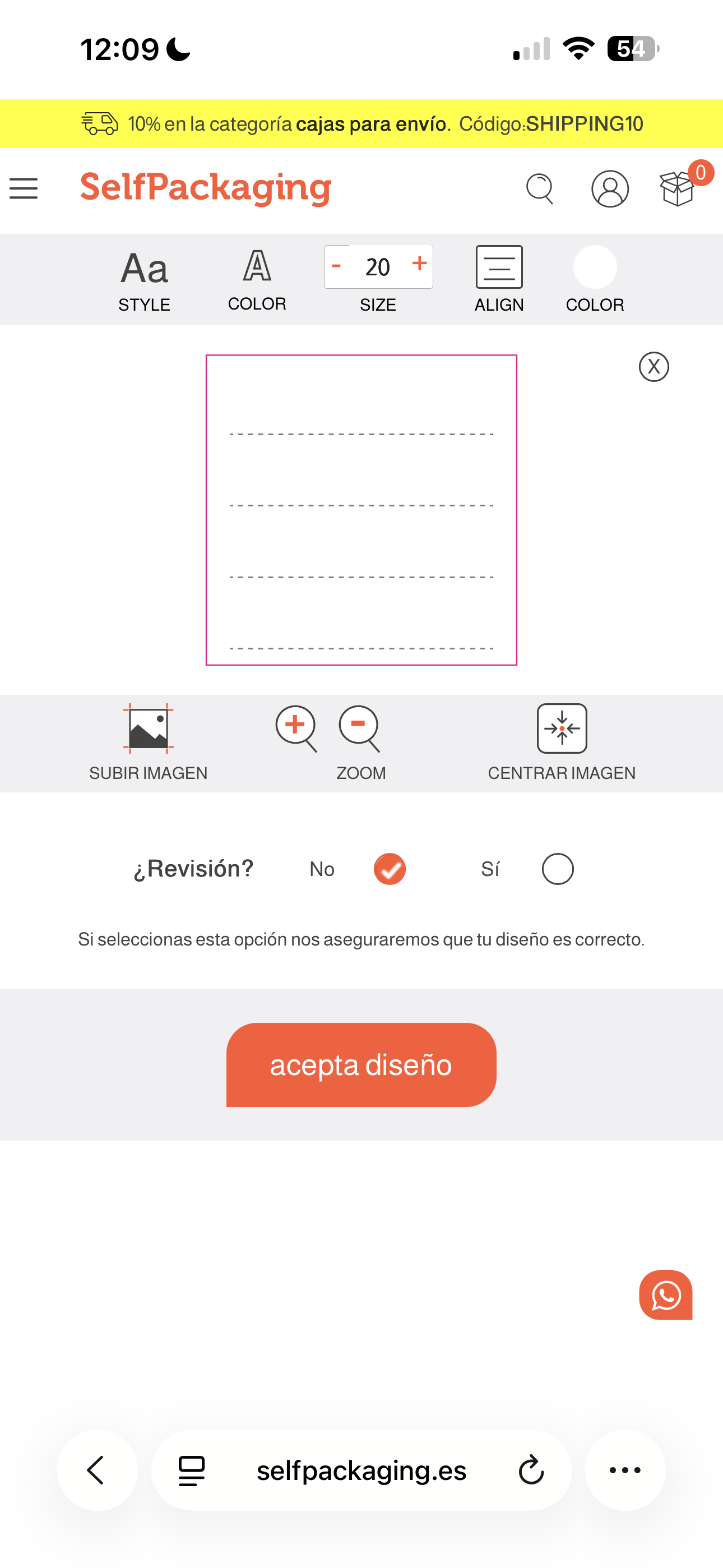
- Printed stickers: This option is for when you want customizable stickers (you will be able to add text in different sizes, fonts, and colors).
Desktop version:
Mobile version:
- Plain stickers: This option is for when you want completely plain white stickers.
In addition, you can choose between three different shapes:
- Square or rectangular
- Circular
- Frame-shaped
This way, you can adapt your stickers to your brand style and your packaging design.
CUSTOMIZATION OF SLEEVES FOR SHIPPING BOXES
Another available option for our shipping boxes is sleeve customization.
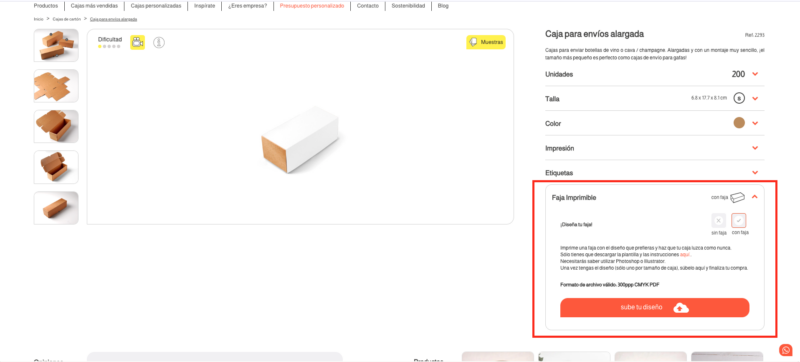
To do this, simply scroll down to the “Printable sleeve” option (remember that this option is only available for shipping boxes) and select “With sleeve”.
A dropdown will open where you can upload the design you want to use for the sleeve:
Desktop version:
Mobile version:
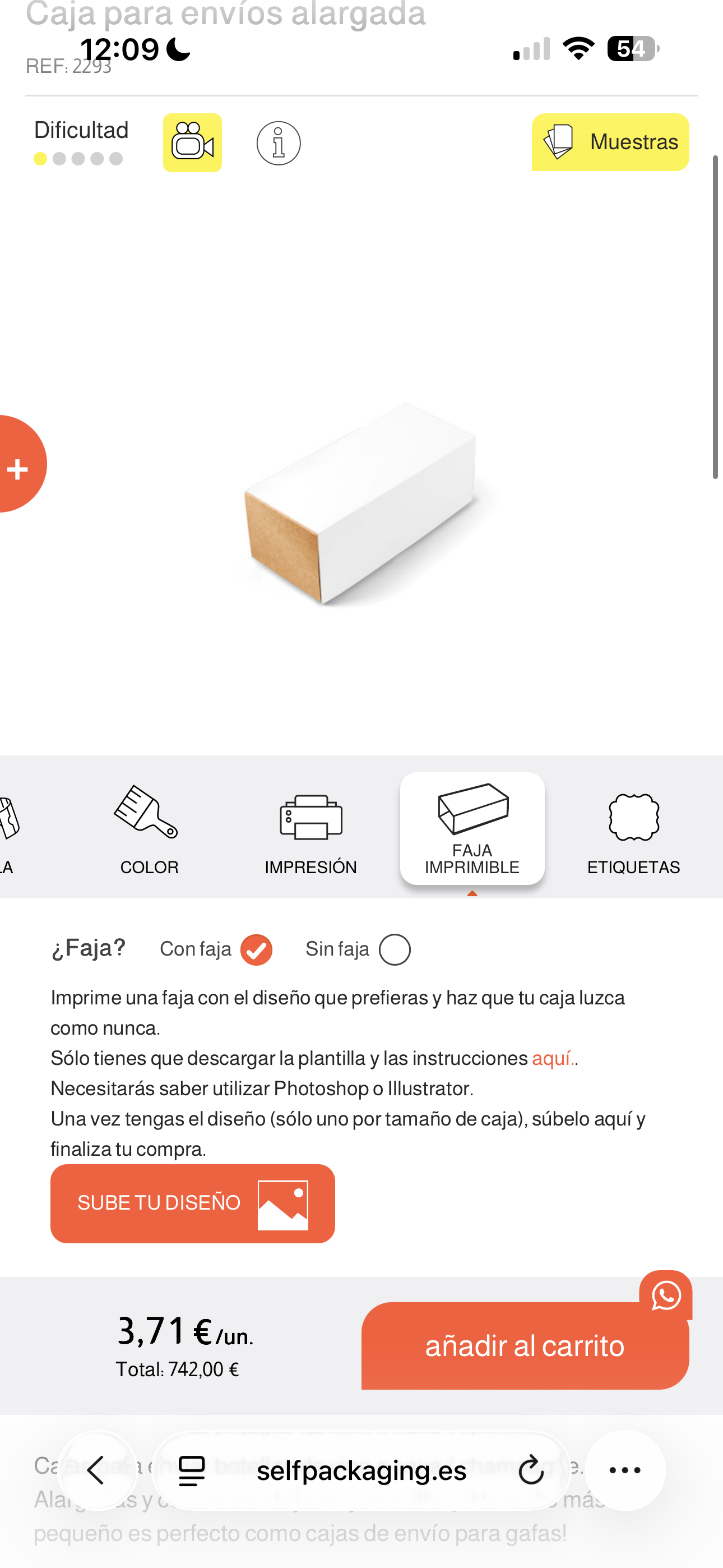
You just need to download the file that includes the template and instructions by language, prepare your design, and upload it.
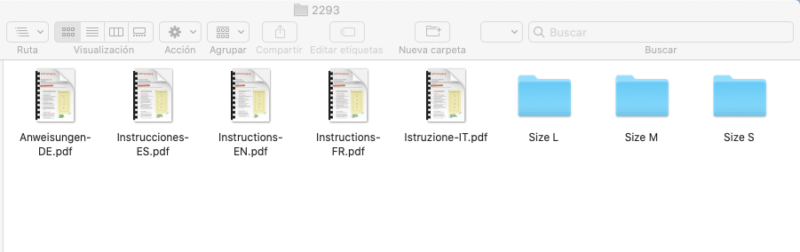
Keep in mind that you will need to know how to use Photoshop or Illustrator to create the design.
Once you have your design ready (only one per box size), upload it and complete your purchase.
Valid file format:
300 dpi – CMYK – PDF
CUSTOM PACKAGING
Thanks to our online 3D designer, creating customizable packaging is a fast, visual, and accessible process for any type of business.
In just a few minutes, you can design 3D boxes fully adapted to your brand, with your logo, your colors, and your style.
Now that you know how our configurator works, there’s only one thing left: start designing your own packaging.
If you are looking for fully custom packaging, you can also request a personalized quote starting from 500 units.